

For Freelancers and Spa Owners / Managers. Install the Manila Touch Portal on your phone so you get notified the moment a customer sends an inquiry or booking request. No app store needed, it’s free and takes under a minute.
Log in with your usual Manila Touch account, the same one you use for your listing or freelancer profile.
Android (Chrome)
- Open manilatouch.com/portal in Chrome and log in.
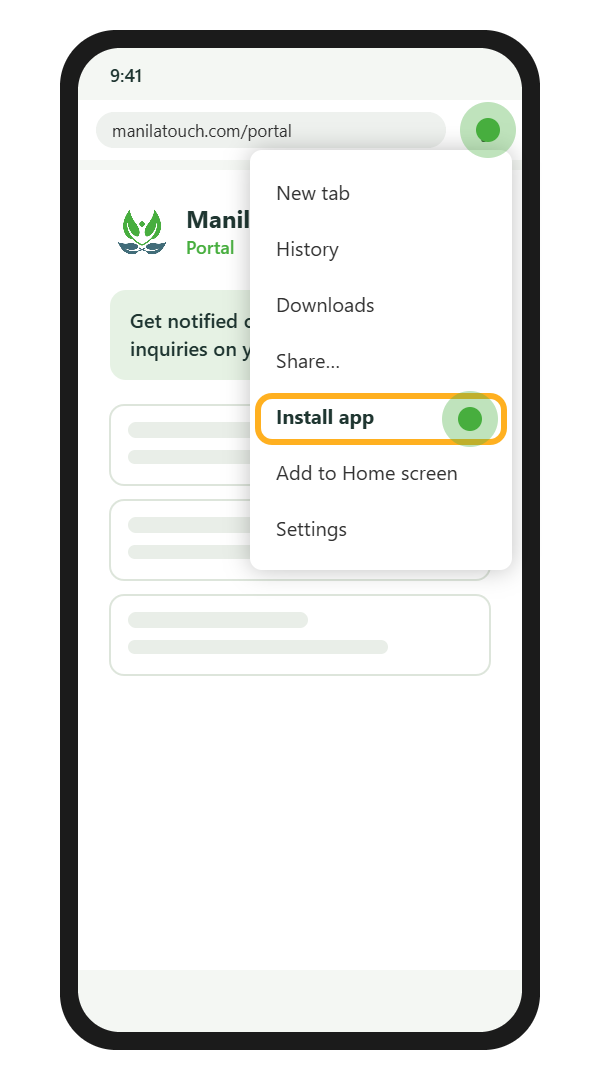
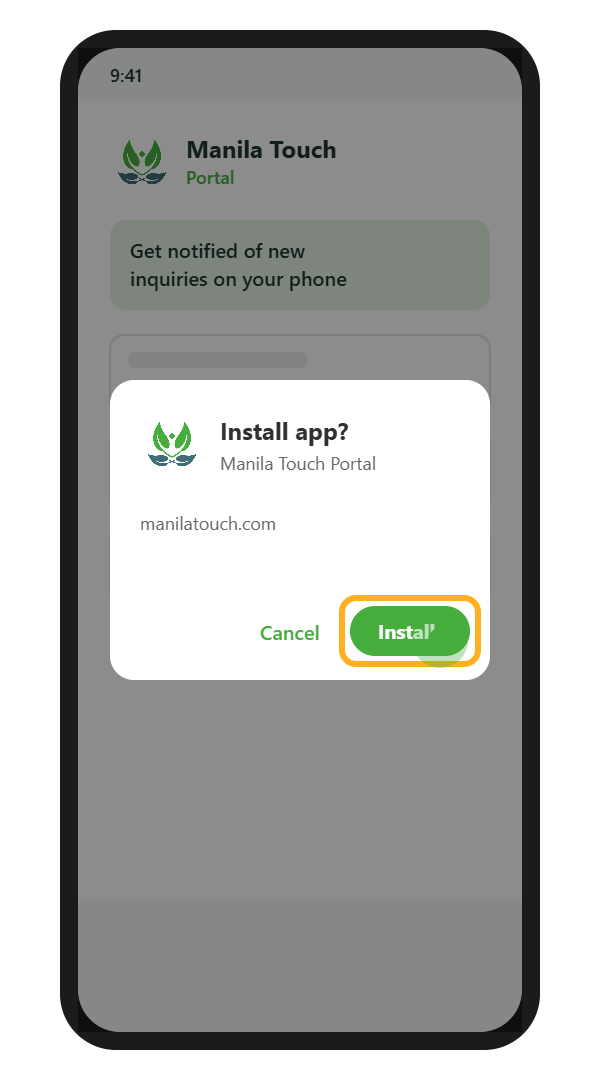
- Tap Install on the pop-up at the bottom of the screen. No pop-up? Tap the ⋮ menu at the top right, then Install app (on some phones it says Add to Home screen).
- Tap Install to confirm. The Manila Touch Portal icon appears on your home screen.
iPhone and iPad (Safari)
- Open manilatouch.com/portal in Safari and log in.
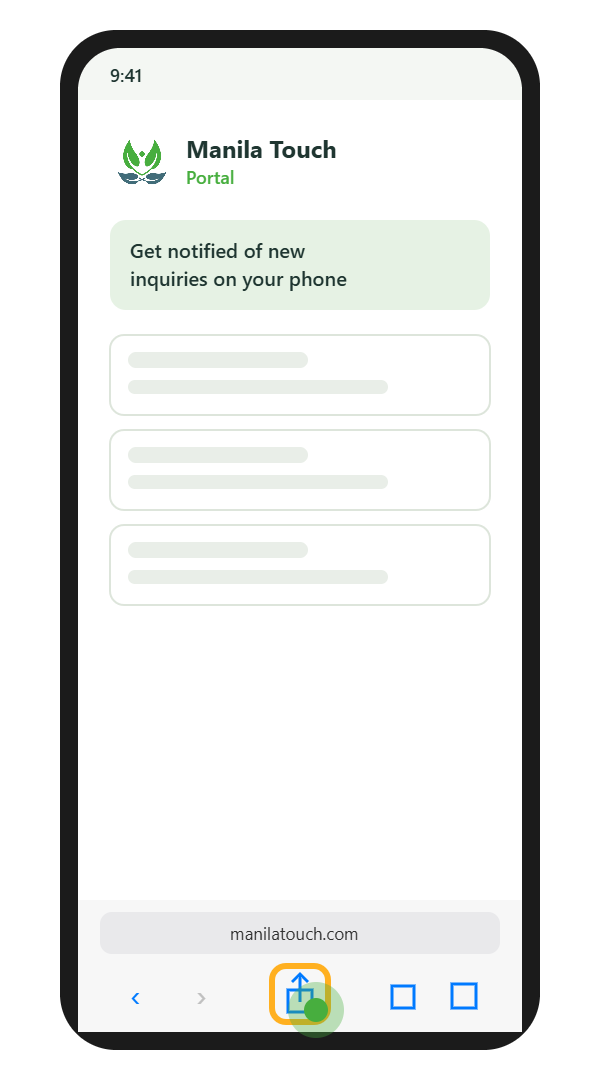
- Tap the Share button (the square with an arrow pointing up) at the bottom of the screen.
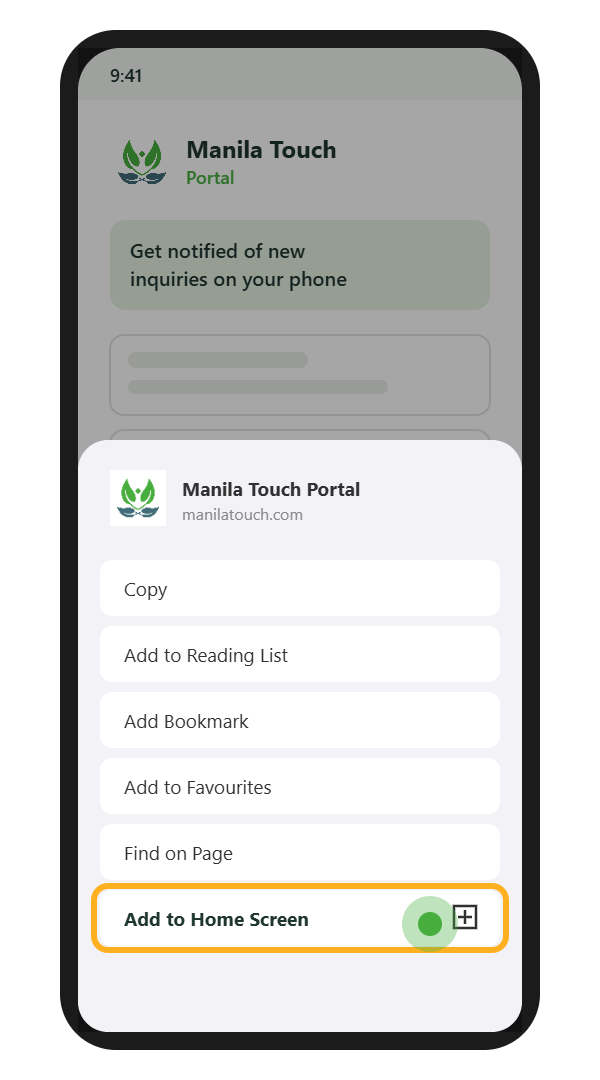
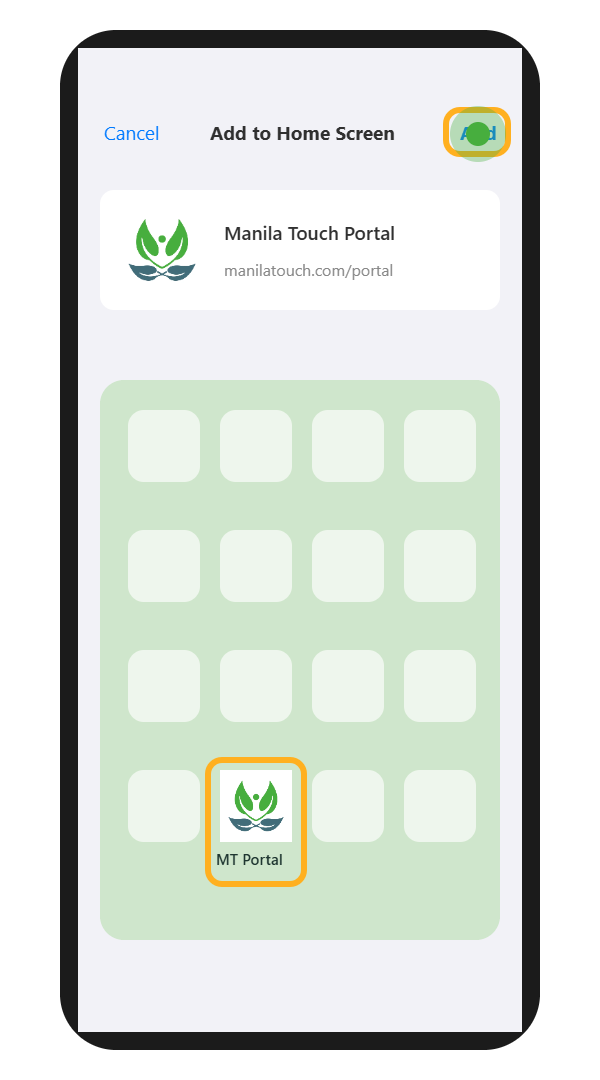
- Scroll down and tap Add to Home Screen.
- Tap Add at the top right. The Manila Touch Portal icon appears on your home screen.
Turn On Notifications (all phones)
- Open the Manila Touch Portal from your home screen icon.
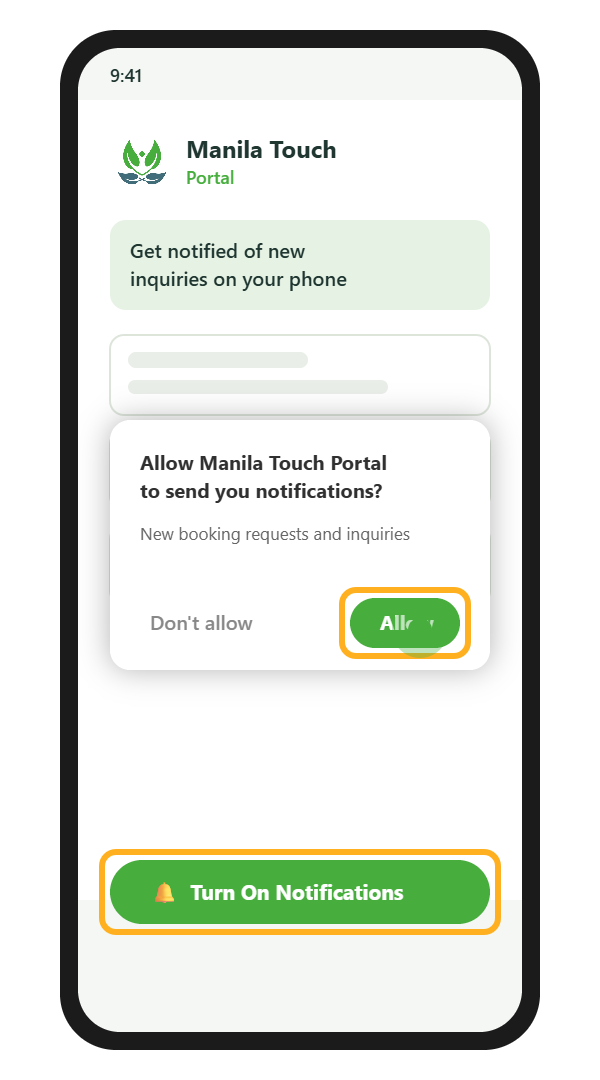
- Tap Turn On Notifications.
- Tap Allow when your phone asks.
- Choose which alerts you want in the Portal’s notification settings. New booking requests are on by default.
Not Getting Notifications?
I tapped “Don’t Allow” by mistake
Android: Settings → Apps → Manila Touch Portal (or Chrome) → Notifications → turn on. iPhone: Settings → Notifications → Manila Touch Portal → Allow Notifications.
Notifications stopped coming
Turn off Battery Saver / Power Saving for the app, check that Do Not Disturb or Focus is off, and open the Portal once so it can refresh. Still nothing? Remove the icon from your home screen and install it again using the steps above.
I can’t log in
Use the same email you use for your Manila Touch listing or freelancer profile. Forgot your password? Tap Forgot Password on the login screen.
Need help?
Message us on Viber at +63 917 453 6288 and we’ll walk you through it.